

The website monitor went off at 6 a.m. Something was wrong with one of our sites. I pulled up the alert, looked at the flagged section, and everything looked fine to me. I closed the laptop and went back to my coffee.
That happened six times over two weeks. Five of those times, I was right to dismiss it. The sixth time, I was wrong – and a real bug had been sitting there, visible to customers, for longer than I’d like to admit.
When website monitoring alerts cry wolf
We run automated website monitoring that checks our sites regularly and flags anything that looks off. It compares page sections against a baseline – layout, content, key elements. When something drifts far enough from the baseline, it fires an alert.
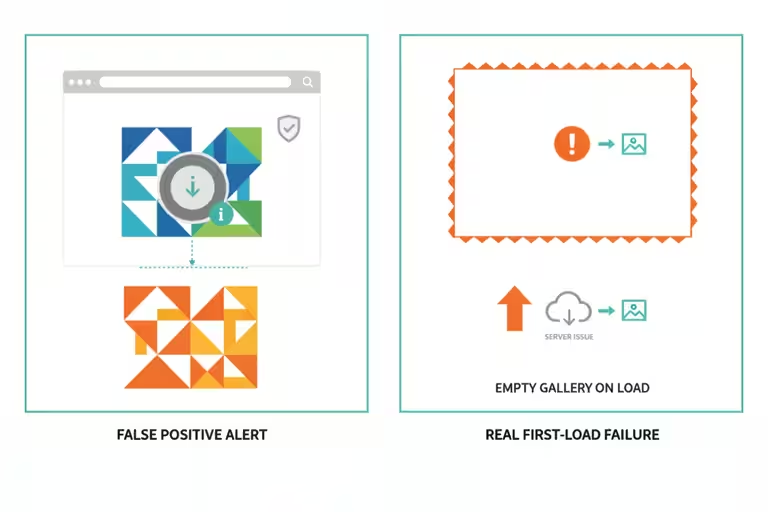
The problem is that not every change is a problem. A font loads slightly differently on a Tuesday. An image swaps out because we updated the gallery. The comparison tool sees the difference and sends the alarm. Five of our six recent alerts fell into that category: legitimate changes the monitor didn’t recognize as intentional.
The issue with that pattern is obvious. Once alerts fire often enough for non-problems, you start dismissing them faster. Your response time to a real issue quietly gets worse.
So we dug into every one of those six alerts properly, traced each one back to its actual root cause, and fixed the detection logic where it was overly sensitive. That part is maintenance work. Not exciting. Worth doing.
The real bug: a project gallery failed on first load
The sixth alert pointed to a project gallery section – the part of a page that shows photos of completed work. When I loaded the page and clicked around, it looked fine. Images loaded, captions appeared, everything worked.
What I hadn’t done was run a first-load website test: load the page fresh and just wait.
A customer who lands on that page for the first time, scrolls to the gallery section, and doesn’t immediately click on anything – they would have seen a blank space. The gallery wasn’t rendering on initial page load. It only appeared after the user clicked or scrolled.
We’d been testing from inside the system, navigating page to page while logged in. The bug only appeared when you came in cold, the way a real visitor does. Once we loaded pages fresh from outside, the issue was obvious. Fix took less than an hour once we understood it.
The lesson: test from the outside. Your workflow and your customers’ workflow are not the same path.
Backup verification has to check the destination
During this same debugging window, we found something unrelated but equally worth writing about.

Our automated backups were running. They were completing. They reported success. But we hadn’t looked closely at where the files were actually landing. When we checked, they’d been routing to the wrong cloud account – one we had access to, technically, but not the right destination for a real recovery scenario.
For weeks, our backups were “working” – no error ever appeared. But if we’d needed to restore something, we’d have been digging in the wrong place under pressure.
The rule we wrote after this: backups must fail in a way you notice, not succeed in a way you never verify. An automated process that completes quietly and routes output somewhere wrong is worse than one that breaks loudly. A loud failure gets fixed. A silent mismatch can sit there for months.
Now our backup jobs verify destination and file count as part of their completion check. If the numbers don’t match expectations, the alert goes to a human. Not a log entry. A human.
Verify backups before website upgrades
In the same week, we upgraded WordPress to version 7.0. New security patches, compatibility updates, the usual.
The rule before any significant website upgrade is simple: confirm the backup exists and that you can actually restore from it, then proceed. Not “I think the backup ran.” Confirm it. Pull a recent file from it.
The upgrade went fine. But that discipline is what makes an upgrade something you do on a Tuesday afternoon instead of scheduling a Saturday for it. A verified backup means a bad upgrade is a quick recovery, not a crisis.
Using an AI coordinator without giving it the keys
One more thing worth explaining: we started using an AI coordinator we call “jefe.” The name is intentional. Jefe’s job is to direct, not to do.
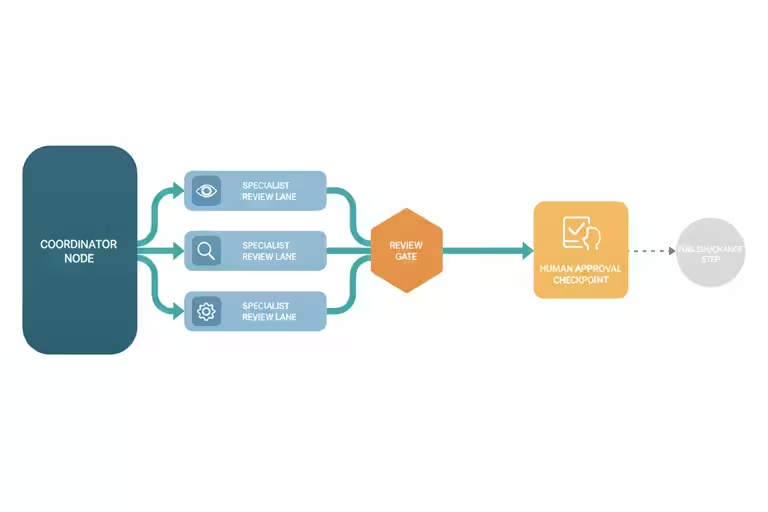
When we have a complex task, jefe breaks it into pieces, assigns each piece to a specialized AI assistant, and collects the results. It never edits a file or makes a change directly. It only coordinates.
I built it this way because I watched what went wrong when a single AI assistant tried to handle too many things at once: mixed-up context, lost steps, fixes from one area getting applied to problems in another. One coordinator plus focused specialists plus a human reviewing the output works noticeably better than one assistant trying to do everything.
The structure matters more to me than whichever model happens to be newest that week: a director that does not touch the work, specialists that stay in their lane, and a human who checks before anything ships. That is how I keep AI useful without letting it run the business by itself.
Tuning monitoring alerts lowers noise but adds risk
Jefe can delegate to the wrong specialist, or two specialists can return conflicting answers. The human review step isn’t optional or a formality. More than once, the consolidated report has included a finding that was just wrong, and a human caught it.
The monitoring tuning is also not a permanent fix. Reducing false positives means the thresholds are less sensitive, which means a real issue might take slightly longer to trigger. We accepted that tradeoff deliberately and will revisit it if something slips through.
Check one automated business process this week
Pick one automated process in your business this week – a backup job, a scheduled report, a recurring email – and check the actual output, not just whether it ran. Did the backup land where you expected? Does the file open? Is the report showing the right data?
This takes about five minutes. It has saved us more than once.